

Learning how to install Bus Simulator Indonesia map mod can help players explore custom roads, cities, villages, mountain routes, and other environments in BUSSID. Map mods are popular among players who want more variety beyond the standard routes available in the game.
However, installing a custom map requires attention to the game version, map format, file placement, and any instructions provided by the map creator. If these details do not match, the map may fail to appear or load correctly.
This guide explains the basic process of installing a BUSSID map mod, checking the correct map file location, understanding compatibility, and fixing common loading problems.
What Is a BUSSID Map Mod?
A BUSSID map mod is custom map content created for Bus Simulator Indonesia. Depending on the modification, it can provide different environments, roads, routes, cities, villages, or landscapes.
Custom maps can give players a different driving experience by introducing environments that are not part of their current setup.
A map mod can include features such as:
- Custom roads
- City routes
- Rural areas
- Mountain roads
- Coastal locations
- Bridges
- Villages
- Long-distance routes
The exact features depend on the individual map and the version it was created for.
What to Check Before Installing a Map Mod
Before installing a map, check its requirements carefully.
Important details include:
- BUSSID version
- Map version
- Supported Android environment
- File format
- Required additional files
- Installation instructions
- Available device storage
A map created for an older version may not work correctly with a newer release. Checking these details first can save time when troubleshooting.
How to Install Bus Simulator Indonesia Map Mod
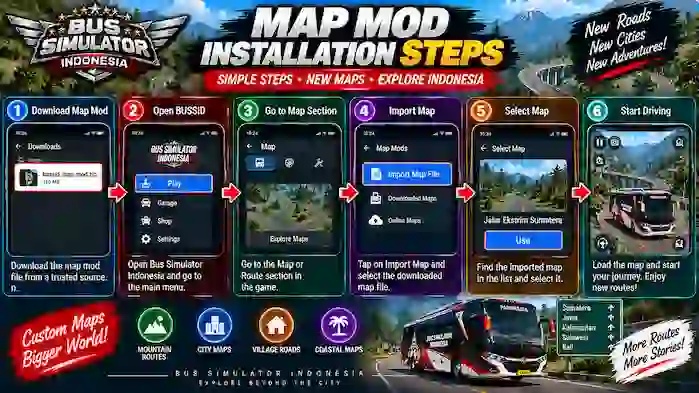
The exact installation process can vary depending on the map and BUSSID version. The general process is as follows.
Step 1: Choose a Compatible Map
First, select a map designed for your version of Bus Simulator Indonesia.
Read the map description and look for compatibility information. If the creator specifies a particular version, make sure your game matches the requirement.
Step 2: Get the Map File
Obtain the map file from a reliable source.
Before opening or moving the file, check its name and format. If it comes inside a compressed archive, follow the creator’s instructions for extracting it.
Avoid suspicious websites that require unrelated applications or unnecessary permissions.
Step 3: Check the Map Format
Map mods can be distributed in different formats depending on the version and installation method.
Do not rename, convert, or modify the file unless the installation instructions specifically tell you to do so.
Keeping the original download available can also make it easier to reinstall the map if necessary.
Step 4: Open BUSSID
Launch Bus Simulator Indonesia and look for the map, route, or custom-content area available in your version.
The interface can change between releases, so the exact menu names may differ.
Step 5: Import or Place the Map
Use the installation or import method recommended for your particular map.
If your version supports an in-game import option, use that option to select the appropriate map file.
If the map requires a specific storage location, follow the creator’s instructions rather than using a folder from an unrelated tutorial.
Step 6: Select the Map
After the map has been imported or recognized, look for it in the appropriate map or route list.
Select the map and check whether its preview and required content appear correctly.
Step 7: Start the Route
Once the map loads successfully, select an available route and begin your journey.
Test the map for a few minutes and look for missing textures, unusual objects, crashes, or other problems.
BUSSID Map File Placement
One of the most common questions is about BUSSID map file placement.
There is no single location that should be assumed for every BUSSID version or every map. The correct method can depend on the game’s current file system, the map format, and whether the game provides an import feature.
If the map creator specifies a particular folder or import method, follow those instructions for that release.
Android versions can also handle application storage differently. As a result, an installation path shown in an old tutorial may not match the storage structure on a newer device.
BUSSID Map Mod Compatibility
BUSSID map compatibility is essential for successful installation.
A map can fail to load if it was created for another game version or depends on files that are not available.
Game Version
Check the BUSSID version supported by the map.
Map Version
Some maps have multiple releases. Always use the version appropriate for your setup.
Required Files
A map may depend on additional content. Check the creator’s instructions before removing or changing any related files.
Device Performance
Detailed maps with large environments can require more processing and memory resources.
File Integrity
A damaged or incomplete map file may not load correctly.
How to Check Map Compatibility
Before installing a map, look for clear information about:
- Supported BUSSID version
- Map release version
- Required files
- Installation method
- Known limitations
- Device requirements
If the information is unavailable, it may be difficult to determine whether the map will work correctly.
It is better to confirm compatibility before installing several different versions of the same map.
Why Is My BUSSID Map Not Loading?
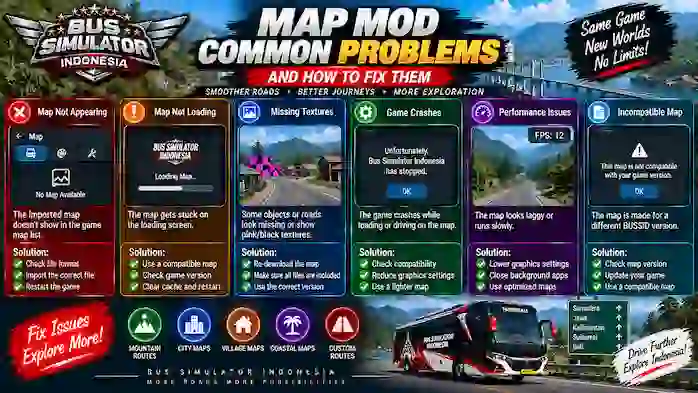
A BUSSID map not loading problem can have several causes.
Incompatible Game Version
The map may have been created for another BUSSID release.
Incorrect File Placement
If your version requires a particular folder or import method, using the wrong location can prevent the game from recognizing the map.
Damaged Map File
An incomplete download can cause missing content or loading failures.
Missing Supporting Files
Some custom maps may depend on additional content. If a required component is missing, the map may not work correctly.
Storage Access
Android storage permissions or file-access restrictions can sometimes prevent an application from accessing a required file.
Performance Limitations
A detailed custom map may place a heavier load on the device and cause slow loading or instability.
How to Fix a BUSSID Map That Is Not Loading
If your map does not appear or fails to load, try these basic checks.
1. Check the Game Version
Confirm that your BUSSID version matches the map’s requirements.
2. Verify the File
Check that the download completed successfully and that the file has not been accidentally altered.
3. Follow the Correct Installation Method
Review the creator’s instructions and use the recommended import or placement method.
4. Check Required Files
Make sure any required supporting content is present.
5. Restart the Game
After importing custom content, completely close and reopen BUSSID.
6. Test Another Compatible Map
Trying a known compatible map can help determine whether the problem is with the game or the particular file.
7. Remove the Problematic Map
If the map repeatedly causes crashes or instability, remove it and test the game without it.
Common BUSSID Map Mod Errors
Players may encounter several common problems when working with custom maps.
Map Does Not Appear
The game may not recognize the map because of incorrect placement, unsupported format, or incompatibility.
Map Loads but Looks Incomplete
Missing supporting files or incompatible content can result in incomplete environments.
Game Crashes During Loading
An incompatible or damaged map can potentially cause instability.
Textures Are Missing
Missing assets or version conflicts can cause graphical elements to display incorrectly.
Map Is Very Slow
Large or highly detailed environments can require more device resources.
How to Improve BUSSID Map Performance
If a custom map works but performance is poor, try some general optimization steps.
- Close unnecessary background applications.
- Reduce graphics settings if available.
- Avoid running multiple demanding custom modifications at once.
- Keep sufficient free storage available.
- Use maps appropriate for your device.
- Remove custom content that repeatedly causes instability.
Performance depends on both the map and the device, so a map that runs well on one phone may perform differently on another.
BUSSID Map Mod vs Bus Mod
A map mod changes or adds environments and routes, while a bus mod focuses on custom vehicles.
For example:
Map Mod: Adds or changes roads, cities, villages, or other driving environments.
Bus Mod: Adds or changes a bus or vehicle.
Livery: Changes the visual appearance of a compatible bus.
Understanding these differences makes it easier to find the right type of BUSSID custom content.
Best Practices for BUSSID Map Mods
Follow these practices for a smoother experience:
- Check compatibility before installation.
- Read the map creator’s instructions.
- Keep original files as backups.
- Organize custom content clearly.
- Avoid suspicious download sources.
- Do not install unrelated applications.
- Remove broken maps when necessary.
- Keep track of the game version.
- Back up important game data when possible.
These simple steps can make custom-map management easier.
Frequently Asked Questions
What is a BUSSID map mod?
A BUSSID map mod is custom content that changes or adds routes, environments, locations, or other map-related elements to Bus Simulator Indonesia.
Where should I place a BUSSID map file?
The correct location depends on the BUSSID version and the map’s installation method. Follow the specific instructions provided for the map rather than assuming one folder works for every release.
Why is my BUSSID map not showing?
Possible reasons include an incompatible game version, incorrect file placement, unsupported format, or an incomplete file.
Can an old map work with a newer BUSSID version?
It may or may not. Compatibility depends on how the map was created and whether it supports the newer game release.
Why does BUSSID crash after installing a map?
An incompatible, damaged, or resource-heavy map can potentially cause instability. Removing the recently installed map and testing the game again can help identify the cause.
Final Thoughts
Learning how to install Bus Simulator Indonesia map mod can open up more routes and environments for BUSSID players. The most important parts of the process are checking compatibility, using the correct installation method, and following the instructions provided with the specific map.
The correct BUSSID map file placement can vary between versions, so avoid relying on a single folder path from an outdated tutorial.
If a BUSSID map is not loading, first check the game version, file integrity, installation method, supporting files, and device performance. These checks can help identify the cause without unnecessarily changing other game files.
For more information about custom maps, explore the BUSSID Map Mods pillar page. You can also read the BUSSID Troubleshooting guides for additional help with common custom-content problems.