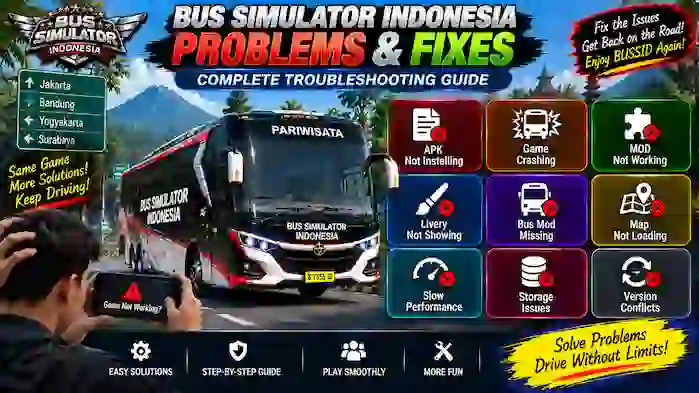
Bus Simulator Indonesia problems and fixes are common search topics for players who experience installation errors, crashes, missing liveries, unavailable bus mods, map-loading problems, or slow performance.
Many BUSSID issues are caused by simple things such as insufficient storage, incompatible files, outdated versions, damaged game data, or device limitations. Custom buses, maps, and liveries can also create problems when they are not compatible with the current game version.
This troubleshooting guide covers the most common BUSSID problems and explains practical ways to identify and fix them.
APK Is Not Installing
One of the most common problems is when the game package does not install successfully.
Possible causes include:
- Not enough storage
- Unsupported Android version
- Corrupted installation file
- Existing conflicting installation
- Device security restrictions
- Incompatible package
How to Fix It
First, check your available storage and make sure there is enough free space.
Next, confirm that your Android device supports the version you are trying to install. If the file appears damaged or incomplete, obtain a valid copy from a trustworthy source rather than repeatedly trying the same file.
If another version of the game is already installed, an installation conflict may also be responsible.
BUSSID Game Keeps Crashing
A game may close unexpectedly during startup or while driving.
Common causes include:
- Limited RAM
- Low storage
- Outdated game version
- Damaged game data
- Incompatible custom content
- High graphics settings
- Device overheating
How to Fix Crashes
Start by closing unnecessary background applications and restarting the device.
Then check whether sufficient storage is available. If the game still crashes, temporarily remove recently added custom content and test the standard game.
If the game works normally without a particular modification, that content may be incompatible or damaged.
BUSSID MOD Is Not Working

Modified versions can stop working for several reasons.
A common cause is a version conflict. A MOD created for an older BUSSID release may not function correctly with a newer version.
Other possible causes include:
- Incorrect version
- Damaged files
- Incomplete modification
- Game update
- Conflicting files
- Unsupported device configuration
What to Check
First, identify the BUSSID version and compare it with the version the modification was designed for.
If the game was recently updated, an older modification may no longer be compatible.
Avoid assuming that every MOD works with every BUSSID release.
Livery Is Not Showing
If a BUSSID livery does not appear after being added, the problem may be related to the file format, placement, bus compatibility, or damaged file.
Possible causes include:
- Incorrect livery file
- Unsupported format
- Wrong bus model
- Incompatible version
- Damaged image file
- Incorrect file placement
How to Fix Missing Liveries
Check that the livery is intended for the exact bus model you are using.
A livery designed for one bus may not display correctly on another model.
Also check that the file is complete and in a format supported by the game.
If one livery works while another does not, the problem is more likely related to the individual livery file.
Bus Mod Is Missing
A bus modification may not appear in the game after you expect it to.
Before troubleshooting, confirm that the file is actually compatible with your BUSSID version.
Possible reasons include:
- Incorrect file
- Unsupported version
- Damaged modification
- Wrong location
- Missing supporting files
- Conflicting content
Troubleshooting Steps
Check the modification’s information and intended game version.
If you recently added several modifications, test them individually. This makes it easier to identify which file is causing the problem.
It is also useful to keep your custom content organized so you can quickly identify outdated or damaged files.
Map Mod Is Not Loading
Map modifications can sometimes fail to load or cause problems during gameplay.
Possible causes include:
- Version incompatibility
- Incomplete map files
- Corrupted files
- Conflicting modifications
- Device performance limitations
How to Fix a Map That Does Not Load
First, confirm that the map is intended for your current BUSSID version.
If you have recently installed other custom content, temporarily test the map without unnecessary modifications.
If the standard game loads correctly but the custom map does not, the map file or its compatibility is likely worth investigating.
BUSSID Is Running Slowly
Slow performance is another common problem, especially on devices with limited hardware.
Possible causes include:
- High graphics settings
- Limited RAM
- Older processor
- Heavy custom maps
- Detailed bus models
- Too many background applications
- Low available storage
- Device heating
Ways to Improve Performance
Try lowering the available graphics settings.
Close unnecessary applications before launching BUSSID and make sure your device has enough free storage.
If performance becomes slow only after installing a particular bus or map, test the game without that content.
This can help determine whether the custom content is contributing to the problem.
Storage Issues
Low storage can cause several different problems.
You may experience:
- Installation failures
- Update errors
- Slow loading
- Download problems
- Game instability
BUSSID can also use additional storage for game data and custom content.
How to Free Space
Review your downloaded buses, maps, liveries, and other files.
Remove content that you no longer use and avoid keeping multiple copies of the same file.
Before installing a large modification, check how much free storage remains on your device.
Version Conflicts
Version conflicts are especially important when using custom BUSSID content.
For example, the game may be updated while an older bus, map, livery, or MOD remains installed.
This can lead to:
- Missing content
- Crashes
- Loading problems
- Features not working
- Unexpected behavior
How to Identify a Version Conflict
Think about when the problem started.
If everything worked before a game update and stopped working afterward, compatibility is a strong possibility.
Similarly, if the problem began immediately after adding a particular modification, that file may be responsible.
How to Troubleshoot Custom Content
When dealing with multiple mods, avoid changing everything at once.
A simple troubleshooting method is:
- Close the game.
- Identify the most recently added content.
- Temporarily remove or disable the suspected file.
- Start BUSSID again.
- Test the game.
- Add compatible content back individually.
This method helps identify the source of the problem without unnecessarily changing the entire game setup.
BUSSID Freezes During Gameplay
If the game becomes unresponsive while driving, device resources may be under pressure.
Possible causes include demanding graphics settings, large custom environments, limited RAM, or device temperature.
Try reducing graphics settings and closing other applications.
If freezing happens only on one particular map or with one bus, test another standard vehicle or route to determine whether the custom content is involved.
Game Takes Too Long to Load
Long loading times can have several causes.
Large custom maps and detailed content can require more time to load. Limited storage or device performance can also contribute.
Try testing the standard game without recently added custom content.
If loading improves significantly, one of the custom files may be contributing to the issue.
BUSSID Controls Feel Delayed
Delayed controls can make driving difficult.
Possible causes include:
- Low frame rate
- Device performance limitations
- High graphics settings
- Background applications
- Device overheating
First, reduce graphics settings if possible.
Then close unnecessary applications and allow the device to cool down if it has become hot.
Audio or Visual Problems
Sometimes the game may run but certain visual or audio elements may not behave correctly.
Possible causes include damaged data, incompatible custom content, or version differences.
Restart the game and test the standard content.
If the issue appears only with a particular bus or map, test that content separately.
Problems After a BUSSID Update
Updates can sometimes change compatibility with older custom content.
After an update, an older bus, map, livery, or MOD may no longer behave as expected.
If a problem begins immediately after updating:
- Check the current game version.
- Check the content’s supported version.
- Test the standard game.
- Remove incompatible custom content.
- Look for an updated compatible version of the content.
Avoid assuming that older custom files will automatically work after every game update.
A Simple BUSSID Troubleshooting Checklist
When BUSSID is not working correctly, check these points in order:
- Restart the game.
- Restart the device.
- Check available storage.
- Close unnecessary background applications.
- Check the Android and BUSSID versions.
- Lower graphics settings if performance is poor.
- Test the game without recently added custom content.
- Check bus, map, and livery compatibility.
- Remove damaged or conflicting files.
- Reinstall the standard game only when other troubleshooting steps fail.
This systematic approach can save time because it helps identify the actual cause instead of changing multiple things simultaneously.
When to Remove a Custom Mod
If a particular modification repeatedly causes crashes, missing content, or loading problems, removing it can help confirm whether it is responsible.
Keep a backup of important personal files before making significant changes to your game data.
If the standard game works correctly after removing the modification, the issue is likely related to that custom content or its compatibility.
Frequently Asked Questions
Why is BUSSID not installing?
Insufficient storage, an incompatible Android version, a damaged package, or an installation conflict can prevent the game from installing correctly.
Why does BUSSID keep crashing?
Crashes can be caused by limited device resources, outdated versions, damaged data, high graphics settings, or incompatible custom content.
Why is my BUSSID livery not showing?
Check the livery file, supported format, bus model, file placement, and compatibility with your current game version.
Why is my bus mod missing?
The bus modification may be incompatible, damaged, incomplete, or conflicting with another file.
Why is my BUSSID map not loading?
Check the map’s version compatibility and test it without other recently installed custom content.
How can I fix BUSSID lag?
Lower graphics settings, close background applications, free storage, and test whether demanding buses or maps are affecting performance.
Can an update break BUSSID mods?
Yes. Changes in a new game version can make older custom content incompatible.
What should I do if a MOD stops working?
Check the modification’s intended game version first. If it is designed for an older release, compatibility may be the issue.
Final Thoughts
Most Bus Simulator Indonesia problems and fixes can be approached systematically by checking storage, device performance, game version, and custom-content compatibility.
If the problem appeared after installing a bus, map, livery, or MOD, test that content separately. If the issue started after a game update, check for a version conflict.
For performance problems, lowering graphics settings and reducing unnecessary background activity can often help. Keeping your game and custom content organized also makes future troubleshooting much easier.
When a problem cannot be resolved, returning to the standard game environment can help determine whether the issue comes from BUSSID itself or from third-party custom content.